
Wednesday, April 25, 2012

Wednesday, April 18, 2012
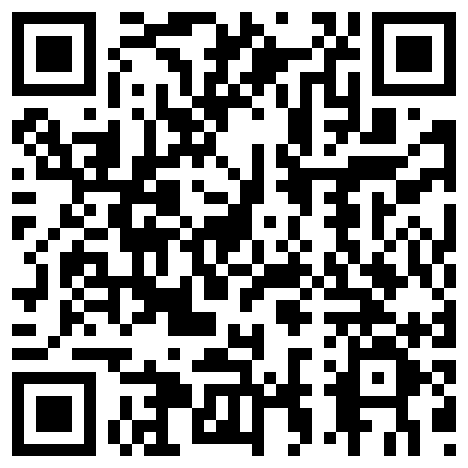
Kaywa QR Code Generator
The Kaywa QR code generator is an extreamly easy to use tool to post QR codes in your classroom or on a website. There is no registration nessesary and it is simple enough to create and use QR codes in your classroom within minutes of visiting the site.
Wednesday, April 11, 2012
Google Scholar
Did you know that all Wisconsin residents with a library card has FREE access to BadgerLink. This service offers articles,journals, books, video, and podcast. What makes this service so valuable is the fact that all information is from reputable sources that are solid and good.
http://www.badgerlink.net/
We also have another resource that has reputable sources in the forms of articles, journals, and books, and that if you do not have a library card you can access. This source is Google Scholar.
http://scholar.google.com/schhp?hl=en
http://www.badgerlink.net/
We also have another resource that has reputable sources in the forms of articles, journals, and books, and that if you do not have a library card you can access. This source is Google Scholar.
http://scholar.google.com/schhp?hl=en
Wednesday, March 28, 2012
ScreenLeap - Share your computer screen with others
On the occasion when you are teaching in a room that does not have a projector unit, you can still share your computer screen with your students. There are many sites that can do this but today I am going to talk about using a website called Screenleap. Screenleap requires no downloads, no installs and best of all is that it is FREE! You can share your screen with any device that has a browser. That means this can work with students who are using an iPod, iPad, netbook, laptop, desktop or smartphone.
To use this site, the teacher goes to www.screenleap.com. Once there, you click on the large green button that says, "Share your screen now!". Your first time in the site, you will have to click on the yellow button the appears at the top of the screen that says, "Always run on this site". Then a box will appear and you have to click the Run button. This is only for the first usage of the day. After that the program will launch automatically.
To get students to see your screen, they have two options. You can email them the link that screenleap provides you with or students themselves can go to www.screenleap.com and type in the numeric code that is on your site.
To control what students see from your screen, you have a small controller on your desktop. You can select students to see your entire screen or the area inside of a rectangle that you can drag around your screen. You can pause the sharing or completely stop the sharing.
Reasons to use screen sharing in your classroom?
Free, simple and easy to use.
To use this site, the teacher goes to www.screenleap.com. Once there, you click on the large green button that says, "Share your screen now!". Your first time in the site, you will have to click on the yellow button the appears at the top of the screen that says, "Always run on this site". Then a box will appear and you have to click the Run button. This is only for the first usage of the day. After that the program will launch automatically.
To get students to see your screen, they have two options. You can email them the link that screenleap provides you with or students themselves can go to www.screenleap.com and type in the numeric code that is on your site.
To control what students see from your screen, you have a small controller on your desktop. You can select students to see your entire screen or the area inside of a rectangle that you can drag around your screen. You can pause the sharing or completely stop the sharing.
Reasons to use screen sharing in your classroom?
- Tutorials/demonstrations
- How-To's
- Digital Storytelling
Free, simple and easy to use.
Wednesday, March 21, 2012
Creating Google Forms
Google Forms is a great educational tool! It's an easy way to create surveys, quizzes, and forms to collect information. To get started you have to have a free google account (which all Menasha employees do), and then the forms are created under Google Docs. Once you have created a form, the responses collected are put into a spreadsheet format. These responses can also be viewed as piecharts and graphs. The video will show you just how easy it is to create a Google Form.
Wednesday, March 14, 2012
Blabberize Your Photos
Blabberize.com is a fun and extremely easy way for your students to create talking photos. The software automatically creates a simple talking animation while you are talking that I love, it reminds me of cheesy commercials I saw during cartoons as a kid. Check out the video below if you are interested in learning how to create your own Blabberized photos.
Wednesday, March 7, 2012
Socrative - As Easy As Raising Your Hand

Teachers use the page t.socrative.com
Students use the page m.socrative.com
Every teacher has a distinct room number that students type in on their page. They will then be redirected to the multiple choice/true false/quiz or exit slip that the teacher sends out their their students. From the anonymous multiple choice and true/false questions results can be displayed life on the screen. Exit slips and quizzes require students to type in their first and last name. Once the exit slips and quizzes are taken, the teacher can end those activities and download or email the results to themselves to review.
You can make quizes ahead of time and save them as well as share them with other teachers.
50 students can be in a room at a time. At the end of each class session, you can clear the room and start fresh with 0 users.
Any student with a device that provides access to the Internet (smartphone, iPad, iPod Touch, netbook, laptop or desktop computer) can use this site with their teacher.
Socrative introduction video (new) from Socrative Inc. on Vimeo.
Subscribe to:
Posts (Atom)