Wednesday, October 9, 2013

Socrative 2.0 - NEW!


Have you used Socrative in your classroom or at meetings to gather feedback, assess understanding and have electronic exit tickets? If you have, the old Socrative you used is now Socrative 2.0!

Changes were made last week to the design of the website as well as new and easier ways to launch questions and quizzes for your students.
Previous users do not have to change their room number and the quizzes they had already created are still there to be used.

To read more about how to use Socrative and see the new look, click HERE.

Watch a short 3 minute video on using Socrative.


Ways to use Socrative in the classroom
  • electronic exit ticket - no more stacks of paper to keep in order
  • ask true/false, multiple choice and short answer questions
  • assess prior knowledge
  • assess comprehension
  • allow for students to respond without feeling embarrassed
  • collect data and have it sent directly to your email account for future reference
  • allow you to make sure you are meeting the needs of your students by customizing instruction from the feedback in the reports
*Note 10/14/13 - The old version of Socrative is still available @ www.socrative.com. If you want to use the new Socrative 2.0 version, go to beta.socrative.com. This is a beta site, please be patient, this is a work in progress. Note that activities created and run in Socrative 2.0 will not exist in Socrative 1.0. Please send any feedback to beta@socrative.com

Wednesday, October 2, 2013

How to translate any page in Google Chrome

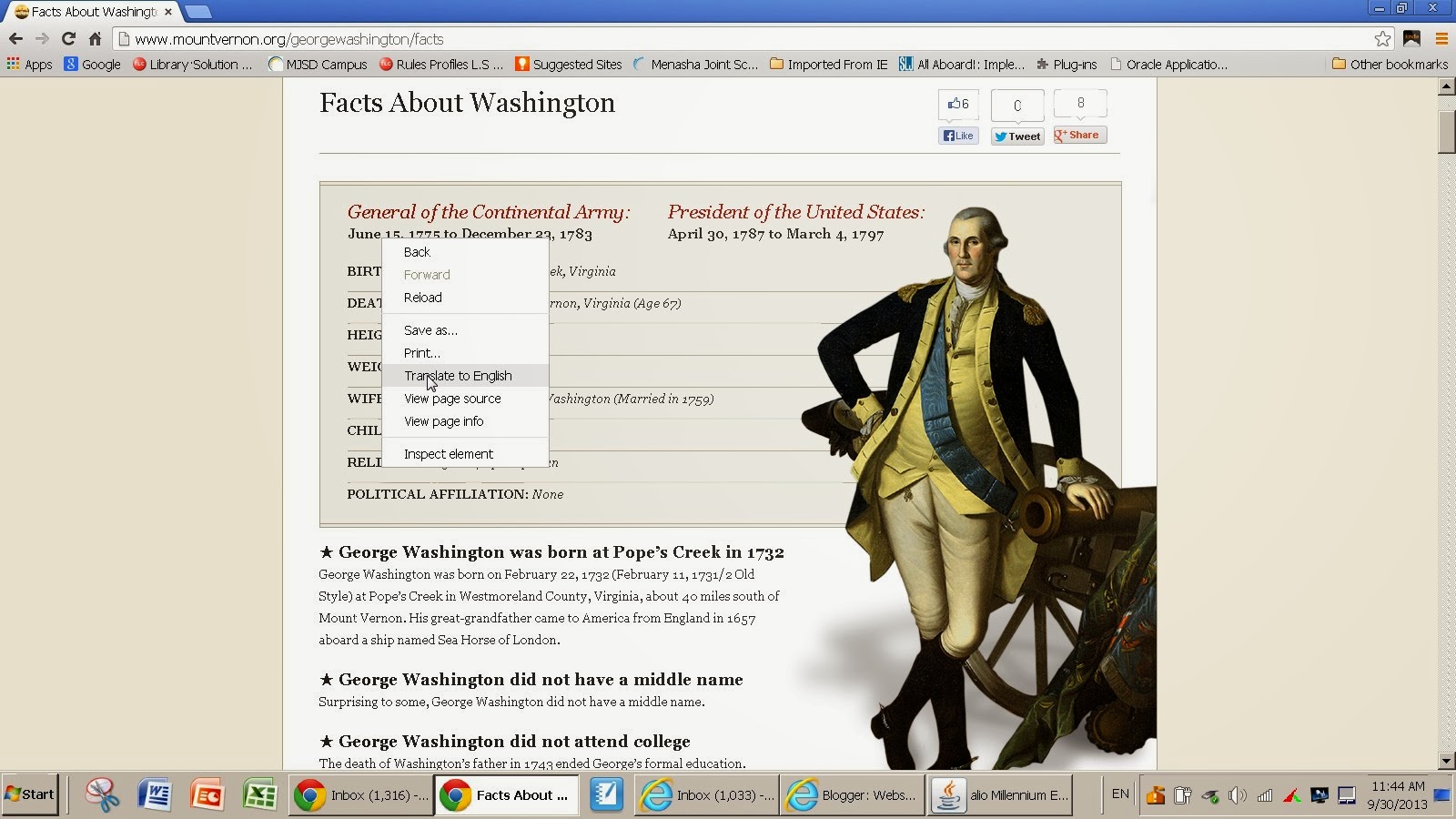
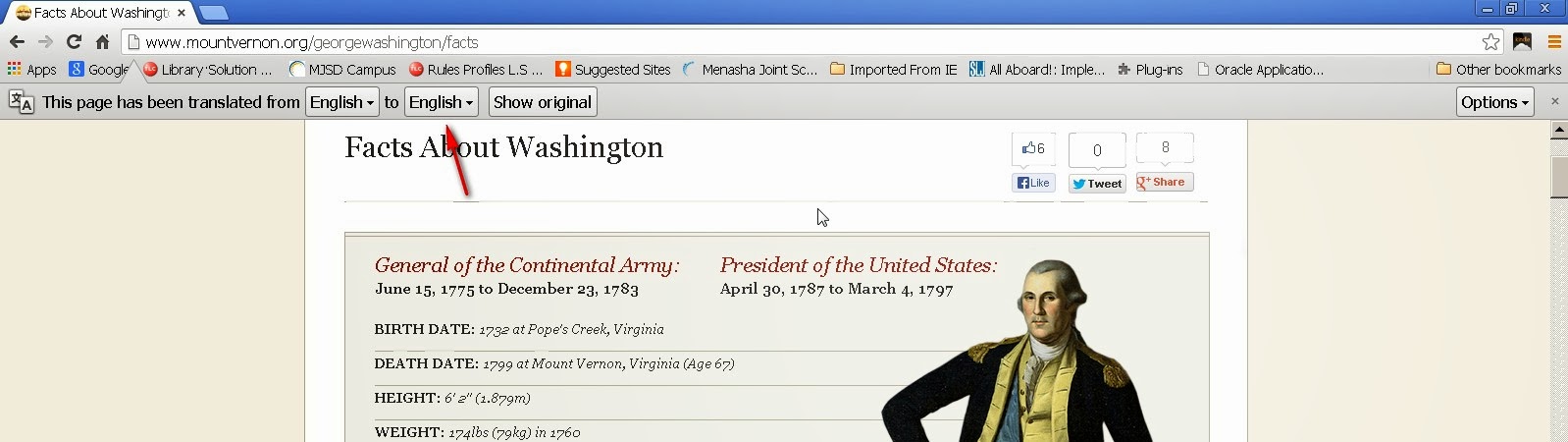
One of the built in features of Google Chrome is that it can translate any page into other languages.  It's very simple to do, but I can't guarantee the translation will be entirely correct.  Simply go to the page you wish to translate, then right click, and click on translate.  It will then come up with some boxes at the top of the page where you can pick which language to translate the page.

Here is a step-by-step example: (click on them to make them larger)
Right Click on page you wish to translate and click on translate.

Next choose the language you wish to translate to.

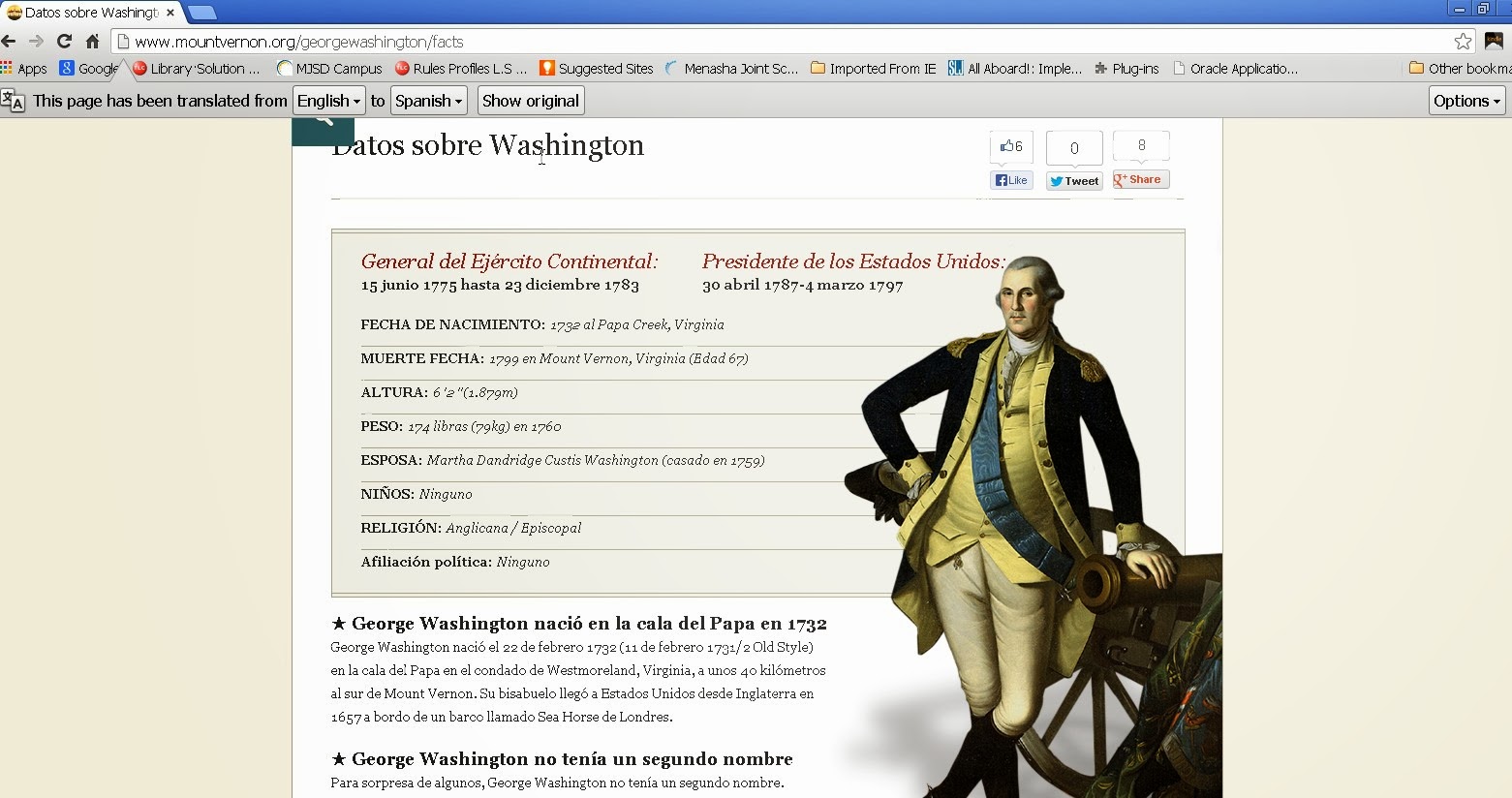
The page will then be translated.

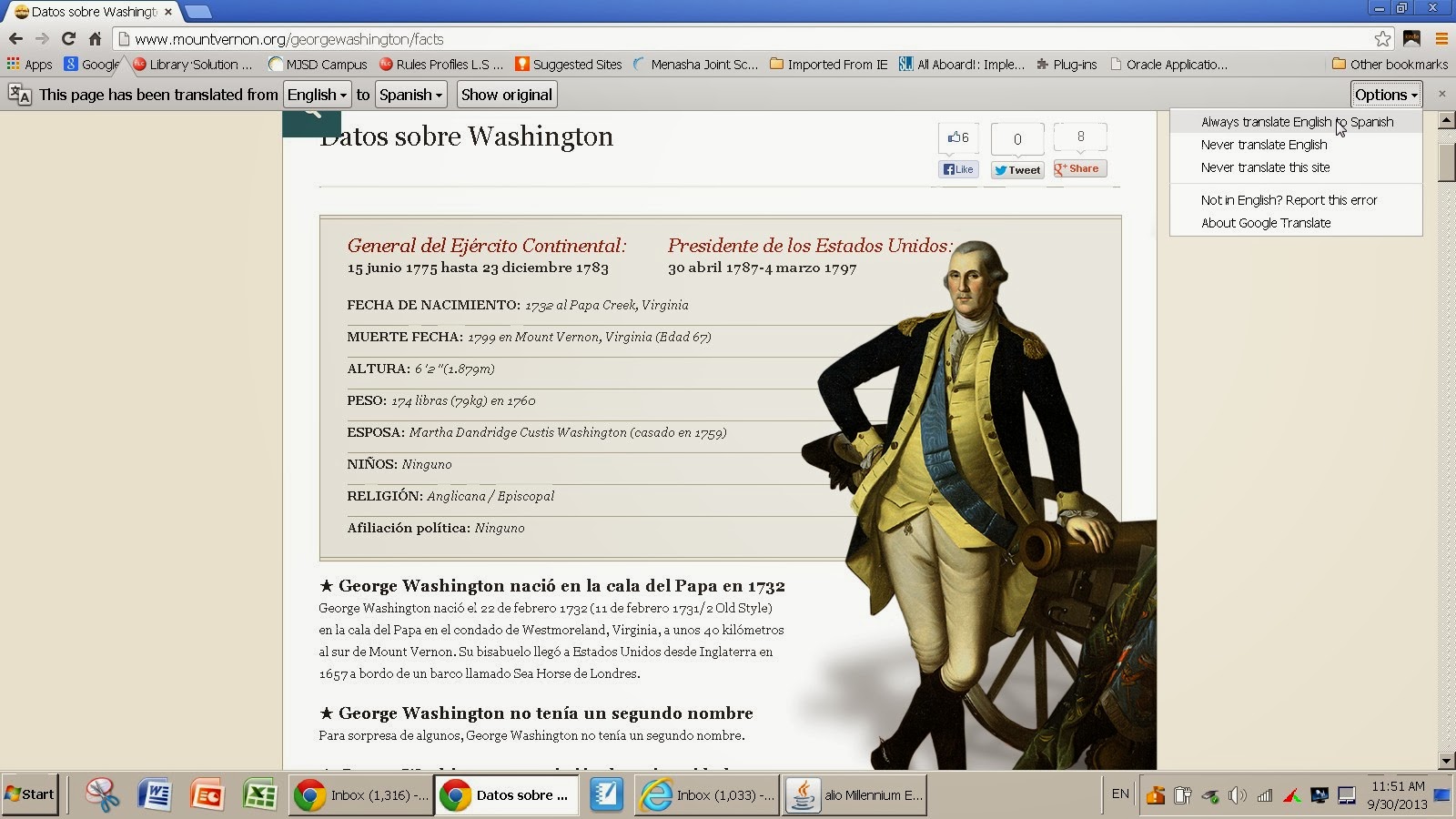
You can also choose to always translate by click on option and always translate.

Wednesday, September 25, 2013

If This Then That - IFTTT

If this, then that. We call 'this' the Trigger, and 'that' the Action. Together, it is a Recipe. 
Technology is supposed to make your life easier, but when using social media and other sites it seems to add more to an already full plate for most educators.  So how can you still use technology and make it simpler?  Well one way is to use IFTTT, which stands for If This Then That.  IFTTT is a site that allows you to make technology recipes.  For example, let's say that I am art teacher and I use my smartphone to take pictures of my student's artwork.  At the end of the day I go home and upload these pictures to a photo website such as Flickr to share with staff, students, and parents.  By using the IFTTT website I can instead create a recipe like this: IF I take a picture THEN automatically load that picture into Flickr (set them private, so you can choose later which pictures you want to share).  Let's say I have a classroom blog, then I could create a recipe that looks like this:  IF a blog post is created THEN email parents to let them know a new post has been created.

IFTTT already has many recipes already made by others that you can use.  Just think of the possibilities!  This would also be a great site to use with students aged 13 and older. 

You have to sign up for an account in order to use IFTTT, but the sign up is easy and takes 2 minutes or less.

This is a great video made by Matthew Woodward to help get you started.

Wednesday, September 18, 2013

Quick and Easy Timer

Need a timer for your classroom and need it now?

Go to google.com. Type your search like this: timer for 8 minutes
 
As soon as you search for a timer for that time period, it begins counting down. You can stop the timer, reset the time and mute the volume of the notification at the end of the time period. There is also a progress bar that moves along as the time progresses.
 
You can create a timer with hours, minutes and seconds.


Wednesday, September 11, 2013

Welcome Chromebooks!

Welcome back to the 2013-14 school year and welcome to the Chromebooks that are in your classrooms in carts or crates. 

Today's post is a link to view shortcuts on the Chromebooks. This list is very nicely put together into groups:
Tabs and windows | Page shortcuts | Browser settings | Text editing

Click the links above or below to access the full page of shortcuts. 
Chromebook Shortcuts 

Enjoy!


Wednesday, September 4, 2013

The New Overdrive


Overdrive, our ebook system, has changed again.  It has made it even easier for staff and students to check out ebooks.  Many of our books are available without download.  Search by genre, reading level, lexile level, interest level, and more.

Wednesday, May 22, 2013

Atomic Learning - Videos to Help you Learn

Atomic Learning is a great resource our district gives us access to. Atomic Learning helps you by providing video tutorials to walk you through using different technology tools. The great thing about these videos is that they are short and to the point. This tool is available to staff, students and parents!

To access Atomic Learning from the MJSD web site, click on Staff Links. Down at the bottom of the page is Training Resources. On that page is the link to Atomic Learning.
 
 
Watch the short video below to see how to access the video trainings. You can find videos on the topics listed on the Training Resource page or search for other web tools and topics you want to learn about.